Plux is a planning instrument: a 3D Earth with real terrain, buildings and sky, driven by real astronomy. Stand anywhere, frame a view, and read when the sun, the moon or any sky target will stand inside it.
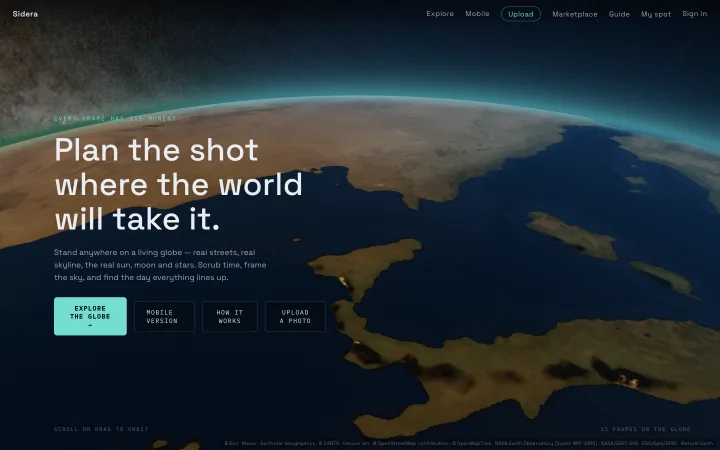
The landing screen. Any click on the globe drops you into the instrument.
The planning loop
Most answers come from one loop: pick a spot, stand in it, command time, read the panels.
Fly to a place — search it or drag the globe (MOVE AROUND).
Stand in the landscape with LOOK FROM HERE (STAND IN IT).
Frame your composition: look around, set the focal length.
The desktop shell at / carries every feature. The phone shell at /m carries the full planning loop — sheets and touch controls instead of panels. Phones land on /m automatically; DESKTOP in the Plux menu switches back and remembers the choice. Your tracked target, your toggles AND your POSE carry across shells — switch while standing somewhere and you arrive at the same place, looking the same way.
The phone leaves out photo and model upload, the marketplace, the Milky-Way season card, the meteor card and calendar export.
What is real here
Terrain and buildings come from real map data. The sun, the moon, planets and 9,000 catalog stars sit at their true positions for the scene time, computed to about an arcminute. When a panel says the moon clears your skyline at 21:14, that is a measurement, not an illustration. Limits worth knowing live in PRECISION.
Explore — the ambient tour
DESKTOP Explore, in the nav
Explore flies the globe from one public photo pin to the next by itself, so you can see what other people have framed without searching for anything. Touch the globe or press Escape to take the camera back. It refuses to start while an upload is in progress.
While the tour runs, a chip reads ◉ EXPLORING · PIN TO PIN.
Keyboard map
DESKTOP Anywhere on the desktop shell
The desktop shell answers the keyboard nearly everywhere, and first-person view prints its own reminder in the corner of the HUD.
Shift — stride, at triple speed. Option/Alt — creep, at half.
Space — rise. Shift+Space — sink.
G, R, S and E — pick the edit handle while a building or a model is armed; S stops walking you back until you disarm.
Ctrl+Z or Cmd+Z — take back the armed building's or model's last edit, or with nothing armed the last mesh edit anywhere.
Escape — unwind one layer: the sky menu, then a building edit, then the MAP window, then Explore, then the view itself.
On the time rail: ← and → step 10 minutes, Home and End jump 6 hours.
In the search box: ↓ and ↑ walk the suggestions, Enter takes one, Escape dismisses them.
Every knob and slider on the desktop deck is a keyboard control too — focus one and the arrow keys drive it.
MOVE AROUND
The globe is a free camera: from orbit down to a street. Getting somewhere is either a drag or a search away.
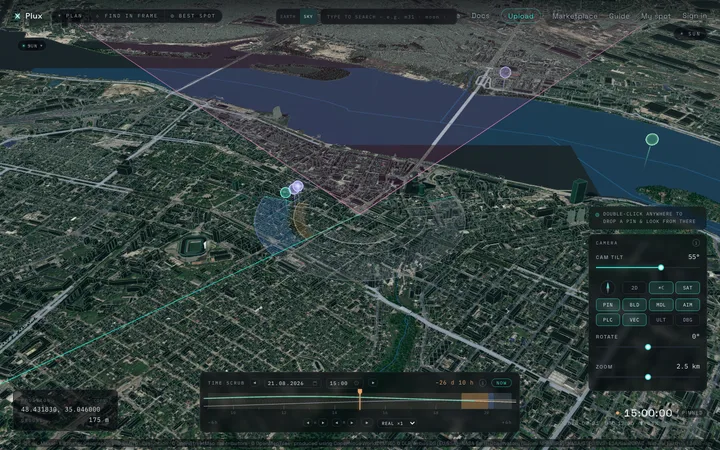
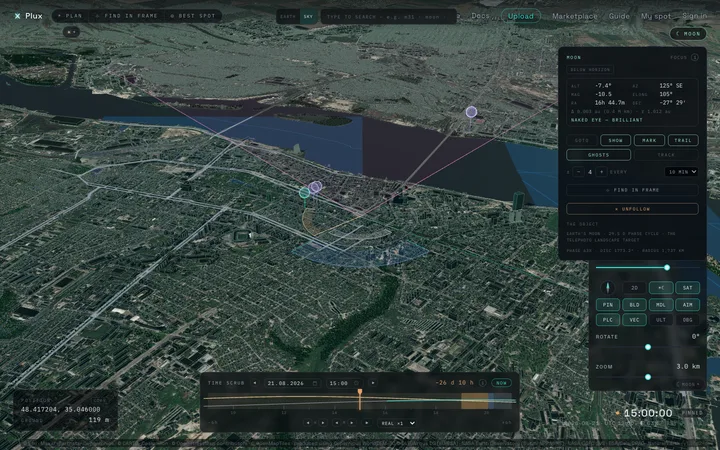
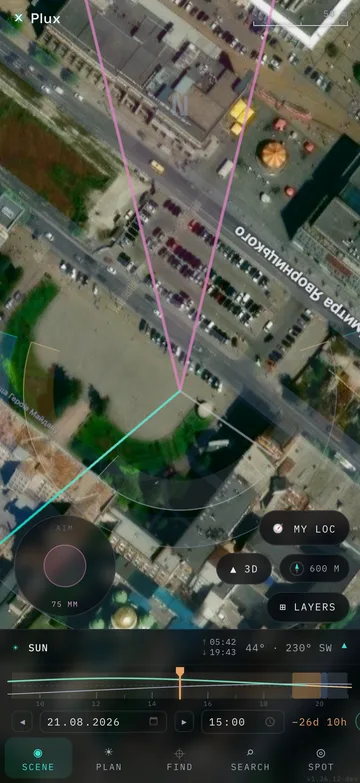
Orbit view over Dnipro. Camera deck bottom-right with its four-column toggle grid, search top-centre, the planned focal cone and direction radar drawn on the ground, time rail along the bottom.
Fly the globe
DESKTOP The globe itself PHONE The globe itself
On /m the shell starts as a flat 2D chart, and the ▲ 3D chip is the only way up into the globe (The flat chart).
Drag to orbit.
Scroll or pinch to zoom.
Zoom in far enough and buildings rise from the ground.
The orbit camera cannot tilt far above the horizon — to frame the high sky, stand in first-person view.
Jump to a place
DESKTOP Search bar in the top nav · the EARTH tab PHONE SEARCH tab · EARTH
Switch the search to EARTH — it opens on SKY.
Type a place name — suggestions appear as you type.
Press Enter for a deeper search when the suggestions miss.
Walk the suggestions with ↓ and ↑, or press Escape to dismiss them.
Click a result — the camera flies there.
The empty field tells you what it wants: SKY offers examples like m31 · moon · orion, EARTH a place name. On /m the field takes focus the moment the sheet opens.
Drop a planning pin
DESKTOP Double-click the ground PHONE Long-press the ground
The pin seats the aim radar and the focal cone — the camera aims from it. On desktop a small popup opens beside the new pin carrying ◎ LOOK FROM HERE, which is how you stand on it, and ↑ UPLOAD HERE for a photo with no GPS. PLAN reads the light where you STAND, not at the pin — take ◎ LOOK FROM HERE for the verdict there.
On /m, ✕ CLEAR PIN removes it.
The camera deck
DESKTOP Bottom-right stack
Eleven toggles and the compass rose, over four columns. The deck compacts in first-person view to what matters there.
DBG — a live engine-metrics window for the curious: frame times, tile streaming, shadows, sky positions. Read-only, desktop-only.
The knobs change with the mode: CAM TILT above the row, ROTATE and ZOOM below it in orbit; ALTITUDE, FOCAL ZOOM and BUILDINGS in first-person view.
ULT — the experimental quality mode
DESKTOP ULT, on the camera deck
The scene normally sheds detail to hold a frame rate on whatever machine it finds. ULT pins quality to its maximum whatever that costs, and pushes building, label and vector detail past the usual ceiling. It is experimental, desktop-only, off by default, and it will make a slower machine work hard.
Flipping it mid-session moves everything except the shadow rig: the big shadow map is built once at page load, so reload to get that half.
A small chart of where you stand, your view drawn as a translucent cone. Click the map itself to open the full MAP window. On /m, tap its edge button to collapse it to a folded-map puck when it covers the view. The direction radar and your focal cone draw on it too, and the AIM stick sits in its corner on desktop.
The AIM stick
DESKTOP Corner of the mini-map PHONE Left rail — above the walk stick in first-person view
A round stick that aims the SHOT, not the walk. Push left or right to swing the heading; push up to go telephoto, down to go wide. It reads out the focal length in millimetres under the pad (why two numbers), and the cone follows it live on every surface. Inside first-person view it steers the real camera; outside, the plan.
It is a RATE control, like the desktop encoder knobs: how far you push sets how fast it turns, and letting go eases to a stop rather than snapping.
STAND IN IT
First-person view puts a camera at eye height anywhere on Earth. The frame you compose here is what every planning tool measures against.
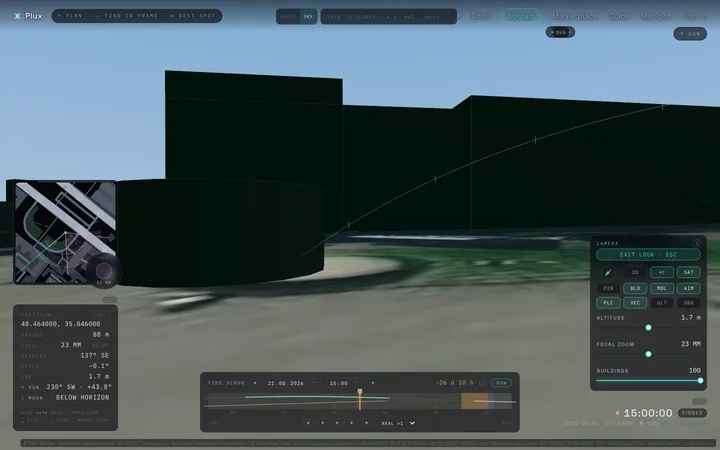
Standing at street level. The HUD reads position, ground, focal, heading, pitch and eye height; the mini-map carries the radar and the AIM stick; the compact deck stays bottom-right; the sun's day arc crosses the sky.
Enter first-person view
DESKTOP Double-click the ground, or My spot in the nav PHONE ◎ LOOK FROM HERE chip
Double-click where you want to stand — a pin drops there.
Press ◎ LOOK FROM HERE in the popup beside it — you land at eye height, looking along the horizon.
On /m, tap 🧭 MY LOC to fly the chart to your device fix.
Then tap the ◎ LOOK FROM HERE chip it arms.
My spot uses your device location and keeps it in the browser — it is never uploaded or published.
Hold Shift to stride at triple speed, Option/Alt to creep at half.
Hold Space to rise, Shift+Space to sink — a short tap nudges by a centimetre.
Drag the deck's ALTITUDE encoder right to rise, left to descend.
On /m, use the ⤒ and ⤓ pads on the right rail to rise and sink.
On /m the joystick keeps walking while your other finger drags the view.
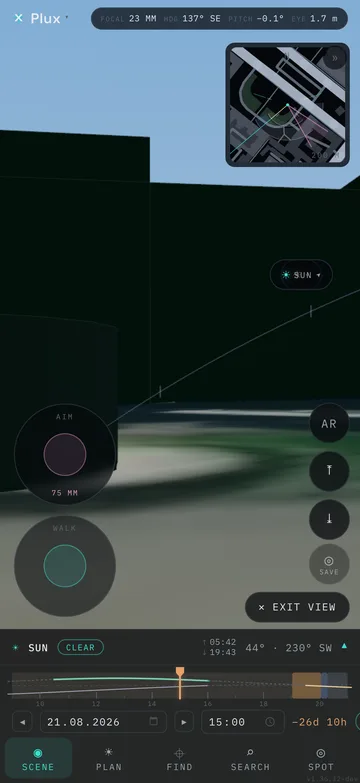
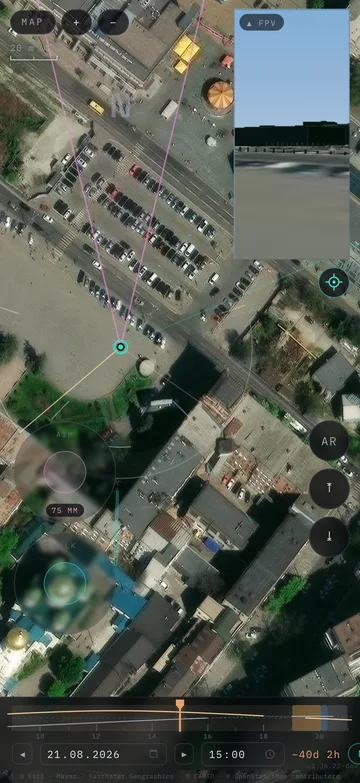
Touch controls on /m: the AIM stick above the WALK stick on the left rail; AR, the rise and sink pads and SAVE on the right; the HUD readout on the strip's right; the mini-map with its radar; and the tracked target's row, with its next rise and set, above the dock.
Set the focal length
DESKTOP Scroll wheel, or the FOCAL ZOOM slider PHONE Two-finger pinch
The frame zooms from a wide 80° down to a 2.75° super-telephoto. Zoom changes what fits the frame — and with it every FIND answer.
Why two focal numbers
DESKTOP FOCAL on the HUD card · mm under the AIM stick PHONE FOCAL in the HUD readout on the status strip · mm under the AIM stick
Two readouts describe one view, and they measure different edges of the frame. The HUD's FOCAL is the 35 mm equivalent across the frame's HEIGHT; the AIM stick's mm footer is the equivalent across its WIDTH. On a 3:2 frame they agree. On a tall phone frame the HUD reads much shorter, because a tall frame is wide in one axis and narrow in the other. Read the one that matches how you crop.
Same view, two edges. Neither number is a correction of the other.
The focal cone
DESKTOP On the map, the mini-map and the globe PHONE Same three surfaces
A rose-coloured wedge drawn from where you stand, exactly as wide as your frame. Inside first-person view it mirrors the live camera; outside it, it draws the shot you are PLANNING — the heading and focal length the AIM stick sets. It reads through the world rather than over it, so buildings stay legible under it. Widen the focal and the wedge opens; go telephoto and it narrows to a line.
The plan is seeded from boot, so the cone is ready the moment you drop near the ground — like the radar it draws below about 10 km on desktop, and only while AIM is on.
Read the HUD
DESKTOP Bottom-left card, under the mini-map PHONE The right of the status strip, in first-person view
The card reads out where you stand and how you are looking, and it prints the keyboard reminder along its foot. Edge chips point toward the sun, the moon and your target when they sit outside the frame; a tracked target's chip stays on below the horizon, dimmed, and clicking it looks where the target rises next. On /m the readout sits on the status strip's right and keeps FOCAL, HDG, PITCH and EYE; the edge chips ride along.
HEADING, PITCH and EYE — your aim and how far above the ground you stand.
☀ SUN and ☾ MOON — where each of them stands right now.
The MAP window
DESKTOP Click the mini-map PHONE Tap the mini-map
The mini-map expands to a big flat chart of the area around you — a centred window on desktop, fullscreen on /m — and it follows you as you walk. On desktop, double-click to stand somewhere else; on /m, long-press to drop a point and stay on the map. Walk, and your pin comes along: it moves to where you stand each time you stop. Drag the chart and it holds where you put it — tap the ⊙ target to come back to yourself.
On /m the walk joystick keeps working over the fullscreen map. On desktop, Esc closes the map first, then exits the view.
Controls on the MAP
DESKTOP Top row of the map window PHONE Pills top-left · live view and ⊙ down the right
The top row carries the title, + and −, and on desktop ✕ MINI-MAP. On /m a scale bar sits under those pills, and to their right a live 3D window onto where you stand — tap it to go back there. Under that, the round ⊙ target button: muted while the chart is following you, lit once you have explored away. The time strip keeps working along the bottom, so you can scrub the sky without closing the map.
Drag the chart anywhere — it stays where you put it.
Watch ⊙ light up: the map is telling you it has stopped following.
Tap ⊙ to centre on yourself again and hand the follow back.
On /m, walk with the joystick — it keeps working over the fullscreen map.
Tap the live 3D window, or press Esc on desktop, to leave the map.
Closing and reopening the map also hands the follow back — ⊙ is the way to do it without losing your place.
The expanded MAP on /m: MAP and ± pills top-left with the scale bar under them, the live 3D window top-right, the lit ⊙ on the right edge after a pan, AIM over WALK on the left rail, your focal cone and radar drawn on the chart, and the time strip above the credit line.
Turn and zoom the MAP
DESKTOP Wheel · drag PHONE Two fingers
Two fingers TWIST the chart to any bearing — N on the radar rim turns with it, so you always know which way is north. The pinch is continuous rather than stepped, and it zooms in proportion to how far your fingers spread — the same feel as the flat chart. On desktop the wheel steps whole levels and a drag pans. Tap a body's direction line on the chart to make that body the emphasized one in the radar.
While the chart is turned, the walk stick works SCREEN-relative: push up and you walk toward the top of the map, whatever bearing that is on the ground.
Fix a building's height
DESKTOP Double-click a building (first-person view) PHONE Double-tap a building
Map data gets heights wrong; your eyes know better. One drag rescales a building between a tenth and ten times its CURRENT height, and repeated edits compound with no ceiling. Right-click the armed building (hold it on /m) for the rest of the suite: MOVE (up to 100 m per drag from where it stands), ROTATE and SCALE its footprint (a tenth to ten times per drag, shown in metres) with a three-axis gizmo, revert one op or all of them, or take back the last edit. A building carried far from its own map cell can blink out at the edge of the view — bring it back or accept it. Edits re-measure every skyline verdict.
Double-click a building — it arms with a highlight.
Drag up or down to rescale it — a translucent ghost previews the new height over the solid original.
Read the pinned label: the live height, with "↳ was" the mapped one.
Right-click it for MOVE / ROTATE / SCALE; the chip lists every op's current and original value with a ↺ each — RESET ALL restores the mapped building.
Press SYNC (sign in first) to share your edits with everyone — buildings other people edited carry a fainter tint, and hovering one tells you what changed.
Click away, tap away on /m, or press Esc when done.
Unsynced edits live only in this browser; synced ones reach every visitor (last sync wins), keyed to the building's map id — most survive a re-bake, one whose shape changed can still drop.
Place your own 3D model
DESKTOP UPLOAD → drop a GLB, OBJ or FBX
Drop a 3D model in the UPLOAD window and it is checked, trimmed to budget and stored as a public GLB. Start from a temporary pin's UPLOAD HERE and it stands there at once; otherwise press PLACE ON GLOBE and click the ground. In first-person view, right-click any model — yours or another member's — for MOVE, ROTATE and SCALE, the same gizmo as a building edit: one drag resizes it between a tenth and ten times its current size, repeated edits compound, the SCALE row shows its size in metres, and the last edit wins for everyone. ROTATE's green ring turns it and its red and blue rings tip and bank it, so a model that arrived on its side stands up. It stands on the terrain until MOVE's green arrow lifts or sinks it — it can never sink out of sight, even flipped, and your own list resets it.
Open UPLOAD and drop a .glb, .gltf, .obj or .fbx — textures and a .mtl ride along — or, with no file at hand, press ▣ ADD A BOX under the drop zone for a plain 5 × 5 × 5 m stand-in that goes down the same path.
Read the CHECK card: triangles, textures and the guessed source units; pick another unit if the size looks wrong.
Press UPLOAD MODEL (sign in first).
Press PLACE ON GLOBE and click where it should stand.
Enter first-person view near it and right-click it — hold it on /m — to move, turn, tip, resize, lift or sink it.
Toggle MDL on the camera deck to hide every custom model.
The deck's MDL chip turns amber where models crowd an area — the ones the frame budget cannot afford are skipped, nearest first.
Manage your models
DESKTOP MY PINS panel · MODELS tab
Every model you stored is listed under MY PINS · MODELS with its size, its triangle count and a badge when another member has edited it. Click a row or GOTO to stand beside the model in first-person view, or click an unplaced row to place it. RESET puts a model back as uploaded — turn, tilt, size and ground seat — where it stands, even one sunk or lifted by someone else. The pencil renames it, HIDE withdraws it from the world and SHOW brings it back, and a second press on ✕ deletes it for good. A hidden or deleted model leaves the world, not the link — the file itself stays public by URL.
Open MY PINS in the top bar and pick the MODELS tab.
Click a row or GOTO to stand beside the model, or click an unplaced row to give it a spot.
Press RESET to undo every turn, tilt, resize and lift at once.
Press the pencil, type a new name and hit Enter.
Press HIDE to take it out of the world; SHOW returns it.
Press ✕ twice to delete it.
Any signed-in member can move, turn or resize your model in first-person view — the row's EDITED badge tells you when someone did.
What a model must be
DESKTOP The CHECK card, before you upload
The CHECK card judges a model before it can be stored, and names the fix for anything it will not take. A file over 15 MB never gets read; the packed model then has to come out under 8 MB, and its textures are downscaled from 2048 to 1024 to 512 px until it fits. Over 100,000 triangles, the model is simplified for you instead. Four things it will not take at all:
More than 25 meshes — join them down to 25 or fewer.
More than 8 textures — bake them into one atlas.
A rigged or morphing mesh — export it as a static one.
DRACO or KTX2 compression — export it uncompressed.
An animated model still uploads — the animation is dropped and it stands still.
Editing handles and snapping
DESKTOP While a building or a model is armed PHONE The same, after a long press
A building edit and a model edit use the same three handles, and the keyboard switches between them. While something is armed, G, R and S select MOVE, ROTATE and SCALE, and E puts a building back on its height drag. S is the scale key while the edit lasts, so walking backwards waits until you disarm. Hold Shift through a drag to snap to 1 m, 15° or a tenth of the current size. A model arms only for a signed-in member; a building arms for anyone, and only SYNC needs an account.
Arrows MOVE — the red and blue ones slide it over the ground, the green one lifts it.
Rings ROTATE — the green one turns it flat; the red and blue ones tip a model over, and a building has neither.
Boxes SCALE — a building takes each axis on its own, a model always scales as a whole.
A building lifts up to 300 m above its base and never sinks below it; a model lifts up to 300 m and sinks only until part of it still shows.
Escape unwinds one layer at a time: the menu, then a drag in progress, then the arming itself.
Undo and drop a session
DESKTOP The foot of the edit chip · the right-click menu · Ctrl/Cmd+Z PHONE The foot of the edit chip · the long-press menu
Every edit you release — a height drag, a gizmo drag, a ↺, a RESET ALL — is one entry in a journal that lasts the session, for buildings and models alike. UNDO walks it back one entry at a time; a drop returns a mesh to its floor, how it stood when you opened the page or at your last SYNC. A drop is one entry itself, so UNDO restores it.
↶ UNDO, at the chip's foot and in the menu — the armed building's or model's last edit.
DROP SESSION — that mesh back to its floor. Synced edits stay.
⟲ DROP ALL SESSION EDITS · N, in the menu — every building and model at once.
MESH EDITS — the pill that stands in for the chip while nothing is armed and session edits exist; it carries UNDO, DROP SESSION and SYNC.
Ctrl+Z or Cmd+Z on desktop — the armed mesh's last edit, or with nothing armed the last edit anywhere.
There is no redo: an undone edit is gone. SYNC moves the floor — after it, a drop returns to the synced state, not the mapped one.
On desktop you return to the orbit camera above the same spot; on /m you land on the flat 2D map, north-up over it.
COMMAND TIME
Every light and sky answer depends on when. The rail along the bottom drives the whole scene — light, shadows, stars, everything.
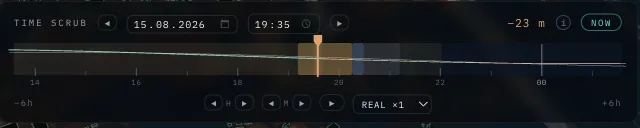
The time rail: light bands behind, sun and moon elevation curves, the playhead cursor in the centre. Teal cursor = LIVE.
Scrub
DESKTOP Time rail, bottom PHONE Time dock above the tab bar
Drag the rail — time slides under the fixed centre cursor.
Drag left to go into the future.
Double-click the middle, or press NOW, to return to the present.
Cursor colour tells the state: teal = LIVE, amber = pinned in the past, blue = pinned in the future.
Read the light bands
The rail is painted with the day's light, from daylight through to night. The curves over it are sun and moon elevation; a tracked target adds its own trace, drawn thick where it crosses your current frame. On desktop a tracked meteor shower adds a rate curve filling its active nights.
Daylight.
Golden hour, then blue hour.
Nautical and astronomical twilight.
Night.
Step between events
Tap the rail's outer edges to jump to the next or previous almanac event: sunrise and sunset, the golden-hour edges, civil twilight, solar noon, moonrise, moonset, moon culmination, and the next full and new moon.
Set an exact moment
DESKTOP Date and time inputs beside the rail PHONE Date jump + ◀ ▶ day steppers on the dock
Pick any date, type an exact time, or step by day, hour and minute with the ◀ ▶ steppers. Focused, the rail answers the arrow keys too: ← and → move 10 minutes, Home and End jump 6 hours. On /m the dock carries the same pair — your phone's own date picker and its own time picker — so an exact moment takes two taps instead of a scrub.
Play
DESKTOP ▶ and the speed picker on the rail
PLAY advances scene time at a chosen speed; fast-forward speeds read red. Watch a whole night's sky motion in a minute.
PLAY is desktop-only — the /m dock carries the clock and the steppers instead.
SKY TARGETS
Track one object — the moon, a planet, a star, a comet, a galaxy — and the whole instrument organizes around it: its trace on the time rail, its verdicts in PLAN, its standings in FIND.
The TARGET panel with the moon tracked: the object card, the GOTO · SHOW · MARK · TRAIL row, GHOSTS and TRACK, FIND IN FRAME and UNFOLLOW — and the banded direction radar on the ground below.
Sun, moon, planets, 451 named stars, the constellations, Messier and NGC objects, bright comets and asteroids, the Galactic Centre. Typos are fine, and picking a result tracks it. Standing in the landscape (STAND IN IT) the camera also turns to it when it is above the horizon; on the globe or the flat map nothing moves.
Read the object card
DESKTOP TARGET panel, top-right PHONE Tap the target row above the dock
On desktop: altitude and azimuth, celestial coordinates, distance, magnitude with a naked-eye verdict, phase and true disc size; on /m the card keeps the essentials. NEXT SESSIONS lists the coming dark-sky windows — press one to pin scene time to its peak. Track the sun or the moon and the card grows an ECLIPSES section. Rise and set jumps live in the sky menu.
Eclipses
DESKTOP ECLIPSES, in the TARGET panel — with the sun or the moon tracked PHONE The same section on the target sheet
Track the sun and the card lists the coming SOLAR eclipses as they will happen from where you stand; track the moon and it lists the lunar ones. Five rows on desktop, four on the phone. A NOW line appears above them whenever scene time is inside an eclipse, reading the live phase and coverage. Press a row and scene time flies to greatest eclipse.
The date, carrying its year — the eclipses ahead at one site can span decades.
The phase: TOTAL, ANNULAR, PARTIAL or PENUMBRAL.
How much of the disc is covered, and a dash for a penumbral one, which covers none.
The clock time of greatest eclipse, and how high the body stands then.
SETS MID-ECLIPSE, or BELOW HORIZON when it is not an event you can watch from here.
A solar eclipse is a different event a hundred kilometres away, so those rows are computed for your anchor. A lunar one is the same for everyone on the night side.
What an eclipse does to the scene
There is no eclipse toggle. The darkness comes from the same sun and moon positions the scene already draws with, so flying scene time into one changes the light everywhere at once. Daylight holds through the partial phases and collapses in the last minute, the way a real one is experienced, and totality reads as a deep, strange twilight rather than as night.
The corona appears only once the last sliver of the sun is covered, and never in an annular eclipse, where the ring stays.
A pink chromosphere hairline sits on the limb through totality.
Stars come out over the final stretch — the bright ones only, because the sky is still lit for hundreds of kilometres around.
An eclipsed moon goes copper inside the Earth's shadow, brightest and most orange along the shadow's edge.
A penumbral eclipse is a faint dimming, as subtle here as it is overhead.
GHOSTS ± N EVERY step surrounds the real body with translucent copies of itself at fixed time steps — up to 15 per side, the past side dimmed. One glance shows where it came from and where it goes next.
TRACK — the camera lock
With TRACK on, the camera stays glued to the target while time scrubs or plays — while you stand in the landscape (STAND IN IT). On the globe or the flat map the toggle only arms the lock for your next LOOK FROM HERE. A deliberate look-drag releases it, so the lock never fights your hand; it also releases when the target sinks below the horizon.
The direction radar
DESKTOP AIM on the camera deck PHONE ∠ RADAR under ⊞ LAYERS
Concentric bands around where you stand — moon innermost, then sun, then your target — each a rise→set ground sector with a direction line. The swept part is grey; what is still to come wears the body's own ink (gold sun, silver moon, blue target), split at scene time. N marks north on the rim, and a band BREAKS where buildings or terrain hide that body. The sky menu's ∠ DIRECTION rows toggle single bodies, and on the flat chart tapping a body's direction line makes that body the emphasized one.
On desktop the radar appears below about 10 km of altitude — climb higher and it stands down. On /m it draws smaller and the bands sit closer in, so it reads against a phone screen without swallowing the map.
The sky context menu
DESKTOP Right-click a body in the sky PHONE Long-press a body
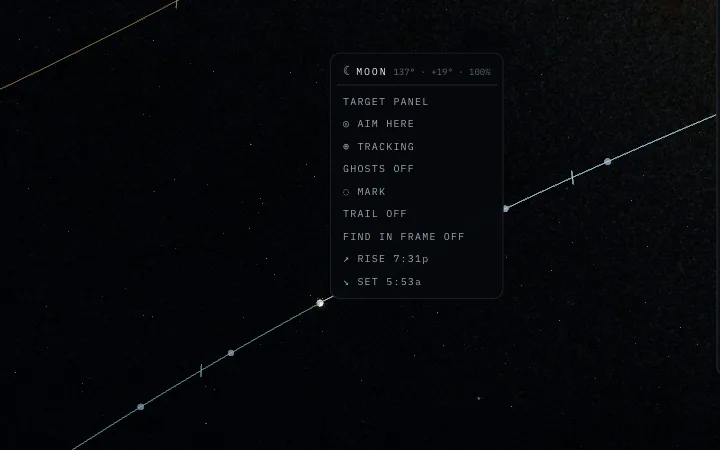
The fastest path to everything a body can do. Active rows flip to DISABLE TRACKING, DISABLE TRAIL and so on, and the moon's header shows its illuminated percentage.
⌖ TRACK it — the row reads TARGET PANEL once it already is the target.
⊕ TRACKING, ◌ MARK, ∿ TRAIL, ✧ GHOSTS — the same toggles as the action row — plus ∠ SUN / MOON / TARGET DIRECTION, which arms that one body's radar band .
Dismissal lasts the session — a reload brings the target back. Search or the sky menu re-follows at any time.
Names in the sky
Hover the sun, the moon or your tracked target and it brightens under the cursor. At night the stars name themselves too — star, asterism and constellation. On /m, tap empty sky to reveal names for a couple of seconds.
PLAN
PLAN answers: what will the light do at this spot? It reads the sun, the moon and your target against the real local skyline — terrain and buildings included.
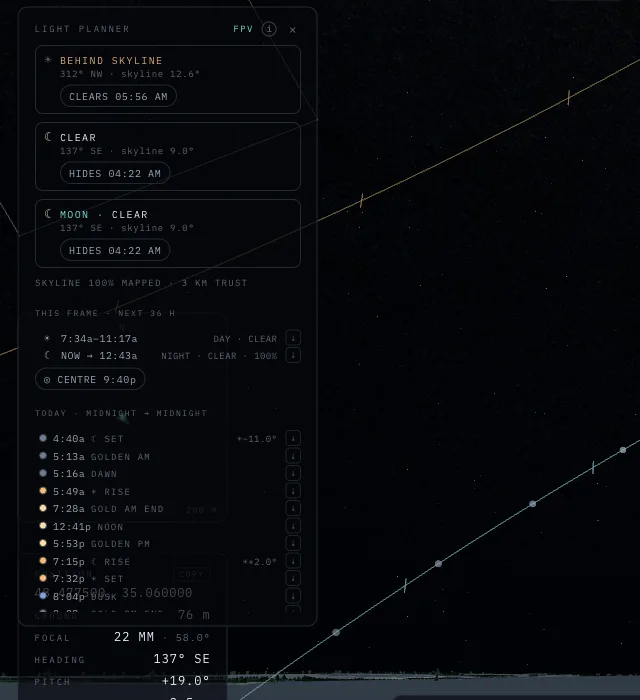
The LIGHT PLANNER window: skyline verdicts on top, then the day's chronology, moon calendar, meteors and star-exposure cards.
Open it
DESKTOP The ☀ PLAN · ⌖ FIND IN FRAME · ◎ BEST SPOT toggle beside the Plux wordmark PHONE PLAN tab
PLAN, FIND and BEST SPOT are three faces of one window: drag it by the grip, resize it by the ◢ corner, double-click the corner to reset, × to close. It keeps its place and its size across every switch.
Skyline verdicts
Sun, moon and target rows read CLEAR or BEHIND SKYLINE against the actual horizon profile from where you stand, with the exact times they clear or hide. A trust line reports how much skyline is mapped and to what distance.
Verdicts read from your feet in first-person view, or from a placed photo. A planning pin alone gives none until you stand on it.
THIS FRAME · NEXT 36 H
DESKTOP Top card in PLAN PHONE PLAN sheet, first card
In first-person view only: when will each body next cross the frame you are composing right now? Rows carry the crossing window, the light phase, a skyline verdict and a jump chip; on desktop they also carry a calendar export.
TODAY
The day's full chronology, midnight to midnight — rises, sets, twilights, with light-phase dots. Click a row to jump time to it.
MOON · PHASES & DISTANCES
Quarters, perigees and apogees ahead, each with its apparent disc size, and supermoon rows starred. When the next supermoon falls past the end of the list, a ★ SUPERMOON chip appears — click it to jump there.
SPOT STARS — sharp star exposure
In first-person view, the card computes the longest exposure that keeps stars as points (the NPF rule) for the exact patch of sky you frame. Enter your aperture and pixel pitch; declination comes from the frame itself.
Milky-Way season
DESKTOP The MILKY WAY card in PLAN
Per-night windows when the galactic core stands in dark sky, scored by darkness against moon interference. Click a window to jump to its peak. Tracking the Galactic Centre also draws the galactic-equator guide — a centre line with two edge circles — over the Milky Way the sky already shows.
This card is desktop-only.
METEORS — peak nights
DESKTOP The METEORS card in PLAN
The METEORS · PEAK NIGHTS · NEXT 120D card scores each shower's maximum against the moon: expected hourly rate, best hour, and how much moonlight washes the night out. Search a shower by name (☄ rows) and track it — the marker stands on the radiant, THE SHOWER facts read ZHR and speed, and the time rail fills its nights with the rate curve.
The card lists coming maxima only — a shower past its peak has no row even while it is still active.
FIND IN FRAME
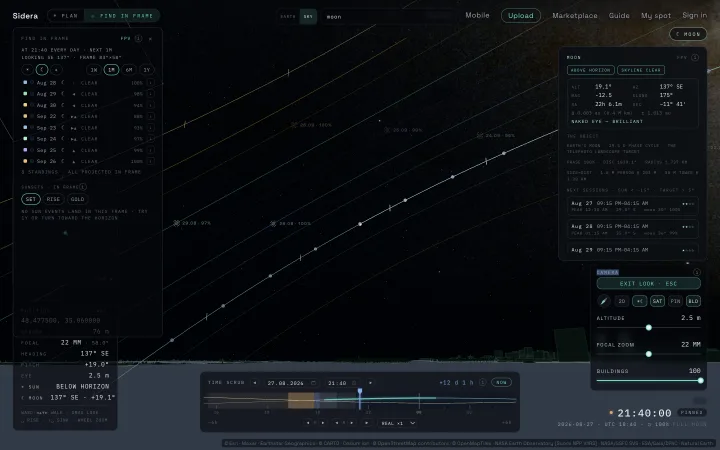
FIND turns planning around. Instead of asking where an object will be, compose a frame and ask: on which days does it stand inside THIS view?
FIND with the moon: the standings list on the left, each day projected into the sky as a dated ring with that day's phase.
The frame is the query
FIND needs first-person view — the query is your composition itself. Each coming day is tested at the scrubber's wall-clock hour against your live frame, so both your aim and your zoom shape the answer: a wide 60° frame may score dozens of days, a 3° telephoto a handful.
Scrub to a different hour and the whole scan re-asks the question there.
Choose bodies and range
DESKTOP Chips at the top of the FIND window PHONE FIND tab · same chips
One row of chips sets the question: the bodies on the left, the range on the right. Your choices stick, and tracking the sun or the moon itself switches the target chip off, because its own chip already covers it. The target panel's ⌖ FIND IN FRAME scans that one object alone, and the same range chips sit beside it, live once its scan is on.
☀ SUN and ☾ MOON — moon alone is the default.
Your tracked target — whatever the search or the sky menu follows: the Milky-Way core, a comet, a nebula.
Range: 1W, 1M, 6M, 1Y.
Read the standings
One row per qualifying day. Hover a row and its sky ring pulses; hover a ring and its row lights up.
Its identity colour, matching its ring in the sky.
The date.
Where in the frame the body stands.
A CLEAR or ✕ skyline verdict.
A visibility score.
Ghosts in the frame
The first 24 listed days project into the sky as a small stack of marks; on desktop, rows past that stay listed with a hollow swatch.
A hairline ring in the day's colour.
A translucent picture of the body, wearing that day's real phase.
Its day-arc path.
A date label — the moon's adds its illuminated percentage.
Click a day — time jumps, camera stays
Click a ring or a row: scene time jumps to that instant and the body becomes the tracked target. The camera does not move — the real body arrives exactly where its ghost stood, inside your unchanged composition.
SUNSETS · IN FRAME
DESKTOP Below the standings in FIND PHONE SUNSETS IN FRAME, in the PLAN sheet
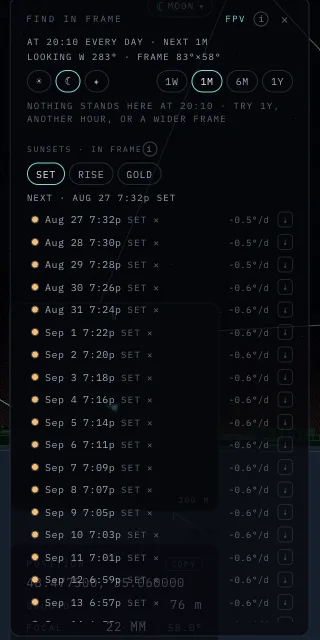
An event-anchored list: on which days does the sunset itself land inside the frame? Chips switch SET, RISE and golden hour. Each row carries the exact time, a skyline verdict and the drift in degrees per day along your skyline; on desktop it also carries a calendar export.
Times are true almanac times. A season's sunsets walk along the horizon and turn around at the solstices — dates far apart can share one spot.
Sunset standings: date, time, verdict and per-day drift.
FIND on the phone
PHONE FIND tab — the third tab
The same scan at touch scale. Collapsing the sheet keeps the standings projected in the frame, so you can compose against them full-screen.
BEST SPOT
PLAN and FIND answer for the spot you are already on. BEST SPOT answers where to go instead — pick a sunrise, sunset, moonrise or moonset, and every patch of ground around you is scored for how good a place it is to watch it from.
Solve a disc
DESKTOP ◎ BEST SPOT, beside the Plux wordmark PHONE The ◎ SPOT tab
The window opens with the heatmap OFF and nothing being computed, so you can set the event, the radius and the sheet height before anything is solved. ◎ HEATMAP is the switch that starts the work. On desktop it shares one window with PLAN and FIND; on /m it is the fifth tab, and until the disc has a centre the sheet offers ◎ CENTRE HERE, which puts it where the chart is looking.
Open it — ◎ BEST SPOT beside the Plux wordmark, or the ◎ SPOT tab on /m.
Set the disc centre — double-click the ground, long-press the chart on /m, or stand somewhere in first-person view.
Pick the event: ☀ SUNRISE, ☀ SUNSET, ☾ M.RISE or ☾ M.SET.
Pick a radius — 100 m to 500 m, 300 m by default.
Press ◎ HEATMAP — a coarse wash appears at once and sharpens over about a second.
Turned on before you have a centre, the chip reads ARMED — NO CENTRE. Drop the pin and it solves; on /m the field stays on the map when the sheet closes.
Read the wash
Colour is the score: dark ground is a poor place to stand, bright ground a good one. Contour lines run along equal scores, and the two the legend labels are drawn heavier. A street-level disc in a city comes out mostly black, which is the true answer — at eye height a skyline hides the event from nearly everywhere, and the eight markers are what you came for.
The SCORE ramp — the absolute score, with its floor and ceiling printed at the ends.
Contours — one line per step of score, thicker at the two labelled values.
A moving dotted hatch — UNMAPPED. Nobody looked there, so it is left uncoloured.
A flat dim with no hue — CAN'T STAND HERE: a roof, a wall, water.
A rim that dissolves instead of ending on a line — the disc edge is a compute budget, not a finding.
On desktop [INFERNO] swaps to [TURBO] and back; TURBO's brightest band sits mid-scale, so under it the best spot comes out dark red.
The eight markers
The eight best cells stand on the globe as numbered markers, kept at least 25 m apart so they land on eight different places instead of eight cells of the same good patch. Their colour carries two readings at once, and the MARKERS legend says which is which.
HUE spreads these eight across the whole ramp — #1 at the bright end, #8 at the dim one — so close scores are still told apart.
BRIGHTNESS is the absolute score, so eight faint markers mean eight poor spots, however colourful they are.
Hover a marker and a tip opens at it with the same facts its row prints; on /m there is no hover — tapping a marker selects its row and looks from it.
Read the shortlist
BEST SPOTS lists those eight as rows, and every row says why that cell earned its place. The number beside the bar is the ABSOLUTE score; the bar is only that row against the best of these eight, so a full bar on a poor disc is still a poor spot.
Its rank, and its absolute score.
A bar — the score divided by the best score in this shortlist.
How far away it is, and on what bearing.
GRAZE, GAP or OPEN HORIZON — what the skyline does on the contact bearing.
A lead like +3m20s — how far from the event instant that cell frames it best.
The list stays inert and reads RANKING… until the finest pass lands. A coarse pass gets the field right but shuffles which eight cells come out on top.
GO, LOOK and REFINE
Click a row to select it — its marker lights up on the globe and its actions appear with it. Selecting moves nothing on its own, because moving the centre re-solves the disc and would destroy the list you are reading.
GO → moves the disc centre to that cell. This is the one action that re-solves the heatmap.
◎ LOOK (◎ LOOK FROM HERE on /m) stands you there in first person with the disc left where it is — ◎ BACK, Escape, or ✕ EXIT VIEW on /m returns.
◠ REFINE re-solves that ONE cell's obstruction at 1 m and prints what it moved. Desktop only — the phone has no ULTRA tier.
NO CHANGE at 1 m means the coarse pass was already right about that cell — the button worked, the answer held.
Lift the sheet
DESKTOP SHEET ALTITUDE, under the radius chips PHONE SHEET ALTITUDE on the ◎ SPOT sheet
The sheet sits at eye height, 1.7 m, and the SHEET ALTITUDE encoder lifts it to 400 m — push right to rise, left to sink, and it eases to a stop when you let go. At 5 m the badge reads ▲ DRONE and the rules change: only the solid interiors of buildings stay masked, because up there you are no longer walking. Double-click the encoder, or double-tap it on /m, to drop back to eye level.
When a disc is too dark to read, a chip offers the lowest lift that clears the display floor — that number is probed on your disc, never a preset.
What the status lines admit
Under the legend sits a block of status lines. Each names a limit of the evidence rather than a property of the place, so you can tell how far the wash can be trusted. On /m three of them stay inline and the rest open under the ▸ MORE CAVEATS row.
How much of the disc is UNMAPPED, and the coverage figure.
The cell size the obstruction was solved at, and the finer one the shortlist used.
The terrain posting under this disc — usually far coarser than the cells drawn on it.
That a vertical building edge resolves to about half a solar disc.
That landcover edges carry a one-to-two-cell ribbon, because map lines are generalised.
How far the evidence reaches, and that past it everything is unknown.
Where the building heights came from — surveyed, or map-derived with class defaults — and that the trees are modelled rather than surveyed.
There is no single resolution to quote. Obstruction, accessibility, terrain and landcover each resolve at their own scale, and all four are printed.
When it refuses
Some discs have no honest score, and the panel names the reason rather than painting over the gap.
⚠ RURAL — TERRAIN ONLY: too few mapped buildings here, so the score is terrain alone.
⚠ NO BUILDING GEOMETRY REACHED THIS DISC: the buildings are mapped but none arrived. Turn the BLD toggle on, or wait for the tiles.
⚠ NO RISE/SET SOLUTION AT THIS LATITUDE ON THIS DATE: a tropics case, where the azimuth barely moves along the horizon.
Nothing above the floor: try another event, a wider radius, or the lift.
That building warning names ▦ 3D DETAIL, which is the phone's label for the layer. On the desktop deck beside this window, the same toggle is BLD.
SAVE & SHARE
A plan is a place, a direction and a moment. All three travel in a link, and members can keep them as saved places.
Share a link
The address bar always carries your exact camera pose — and the pinned time when you scrubbed to one. Copy the URL and the recipient stands where you stand, when you stand there. Links work on both shells.
LIVE time is never written into a link — only a pinned moment travels.
Save a viewpoint
DESKTOP ◎ SAVE PLACE on the camera deck (first-person view, signed in) PHONE ◎ SAVE — the round chip under the ⤒/⤓ altitude cells (first-person view, signed in)
Saving bookmarks the full viewpoint, pinned time included. Both shells ask for an optional name first. Leave it empty and desktop files it as "Untitled place", while /m stamps it with the view and the moment.
Return to a place
DESKTOP MY PINS panel · PLACES tab PHONE ▤ SAVED PLACES chip, or the SEARCH tab's idle list
Tap a saved place and Plux restores the moment first, then the exact viewpoint. Both lists sort nearest-first from where you stand. Deleting lives on the desktop list.
There is no rename — a place keeps the name you gave it when you saved it, so name it then.
Your places on the map
DESKTOP PLC on the camera deck PHONE ◎ MY PLACES under ⊞ LAYERS
Signed in, your saved views draw as lavender dots on the globe and on the 2D map — a private constellation of viewpoints. New saves appear at once; deleting removes them everywhere.
Export to your calendar
DESKTOP The calendar chip on a PLAN or FIND row
Rows across PLAN and FIND — frame crossings, moon events, standings, sunsets — carry a calendar chip that downloads an .ics event for that instant.
Calendar export is desktop-only; the /m rows jump time instead.
Sign in
DESKTOP Sign in, top-right PHONE SIGN IN, in the Plux menu under the wordmark
Saving places and pins needs an account; browsing, planning and sharing links do not. Signing in returns you to the exact view you left.
YOUR PHOTOS
Plux also projects real photographs. Drop in a camera file and it stands as a frame at its true capture spot, with the scene rebuilt in the light it was made in.
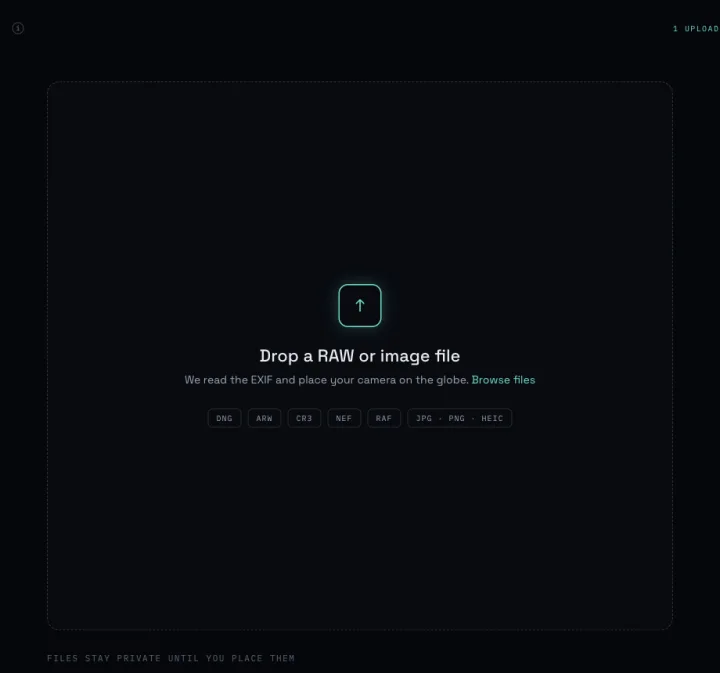
The upload drop zone: the RAW and image formats it decodes, and the promise that files stay private until you place them.
Upload
DESKTOP Upload, in the nav
Drop a camera file — RAW (ARW, CR3, DNG, NEF…), HEIC or JPEG. Decoding happens in your browser; nothing uploads until you choose to save. EXIF supplies the where and when, and the photo rises as a camera frustum at its capture spot.
No GPS in the file? Press SET ON GLOBE, then click the capture spot.
Align it
Cameras rarely record which way they pointed. Swing heading and pitch on the encoder knobs — push and hold to turn, let go and they ease to a stop — then pull the focal and altitude sliders until the projected frame locks onto the real terrain and buildings. Every change re-projects live, and PLANE ALPHA blends the photo against the scene. Pin the clock to the capture time to study its light.
Stand inside the shot
VIEW FROM CAMERA enters first-person view at the photo's exact eyepoint and focal length — then FIND and PLAN answer for that framing: when does the moon return to this composition?
Pins and publishing
Members save photo pins — 100 on the free tier, 1,000 with premium. A public pin joins the shared globe for everyone; location precision is yours to choose (privacy).
Marketplace
DESKTOP Marketplace, in the nav
A public pin with a stored original can be listed for sale at your price. Buyers pay through the site checkout and receive a 30-day download link to the full-resolution original.
ON YOUR PHONE
The /m shell is the planning loop rebuilt for one hand: the globe stays full-bleed, everything else is a chip, a dock or a sheet.
The /m shell on its flat chart: the PLUX mark (tap it for the menu) and the scale bar on the status strip, the focal cone and radar bearings on the map, action chips and LAYERS on the right, the target row with its next rise and set, the time dock and the tabs at the bottom.
The flat chart
PHONE The shell starts here
/m boots as a flat, north-up 2D chart — faster and calmer for planning on a phone. The ▲ 3D chip lifts it into the full 3D globe (long-press it to stand straight into first-person view right where the chart is centred); ▼ 2D folds it flat again. A drag slides the chart with one finger or two, a pinch zooms it in proportion to how far your fingers spread, and a two-finger TWIST turns it — it keeps the bearing you leave it on, and the compass chip answers only in 3D, so to face north again tap ▲ 3D then ▼ 2D. A scale bar on the strip's right reads the chart's scale; 🧭 MY LOC flies the chart to your device fix and arms ◎ LOOK FROM HERE.
Buildings exist only in 3D — ▦ 3D DETAIL stands down while the chart is flat, which is also why the chart shows satellite imagery as photographed and one zoom level deeper than the globe.
The layout
PHONE The status strip on top; the target row, time dock and tabs at the bottom
Two strips carry the chrome, and the globe fills everything between them.
Top: the Plux wordmark, which opens the Plux menu ; the strip's right carries the scale bar while the chart is flat, and the HUD readout in first-person view.
The tracked target row, above the dock — its name, a CLEAR, BEHIND or BELOW badge, ↑ and ↓ for its next rise and set (a dash when none comes within 48 h), then altitude and bearing. Tap it for the full card; hold the NAME to aim at it — in first-person view the look glides onto the body, below the horizon toward where it rises, and on the chart the planned cone's heading turns to it the same way.
The time dock — day steppers, the calendar, the scene-time clock and NOW.
The SCENE · PLAN · FIND · SEARCH · SPOT tabs. FIND and SPOT light up while they are working — a frame scan running, a heatmap armed — and a long press on either switches it off, or back on, without opening the sheet.
The Plux menu
PHONE Tap the Plux wordmark, top-left
The wordmark is a button, and the ▾ beside it is the hint: tap it and the strip's controls drop down as one menu. Any pick closes it, and so does a tap outside it or Escape.
SIGN IN — the hosted login, which returns you to the exact view you left. Signed in, the row carries your name and opens MY PLACES instead.
SIGN OUT — under your name, members only.
GUIDE — this guide, as a sheet.
DESKTOP — the full site at this exact view; the choice is remembered ( One app, two shells ).
Sheets
Tabs open bottom sheets. Every one carries a ✕, a pull-down handle and a dark scrim — any of the three closes it. SEARCH and GUIDE open near full height, because a keyboard eats the lower half of the screen.
Scene chips
The right-edge stack adapts to what you are doing, so you only ever see the chips that apply right now.
🧭 MY LOC — fly the chart to your device fix.
▲ 3D / ▼ 2D — lift the chart into the globe, or fold it flat.
◎ SAVE and ▤ PLACES — round cells under the altitude nudges in first-person view, for members (outside it, ▤ SAVED PLACES is a chip above MY LOC). Signed out the save cell is dimmed — a tap says to sign in from the top bar, which is the Plux menu .
✕ CLEAR PIN and ✕ EXIT VIEW.
A micro-compass with your altitude — tap it in 3D to face north.
While the walk controls are up, the screen stays awake.
AR look-around
PHONE AR — in the altitude column, in first-person view
Tap AR and the phone itself becomes the look: turn it, tilt it, and the view follows. On an iPhone the first tap brings up the motion-access prompt — the browser only asks from the tap itself, never at page load; Android arms at once. A short bubble then says what is steering the view, and clears after a moment. While AR is on, the one-finger look and the AIM stick's heading stand down; the pinch and the stick's focal axis still work. Tap AR again to switch it off, or hold it to calibrate the view against the camera.
COMPASS · TRUE NORTH — north from the phone's compass, corrected for declination, while the gyro carries the turns so a swing comes back to where it started; an iPhone may ask you to tilt the phone down for a moment to re-sync.
GYRO · ALIGNED — no compass: you lined the view up once and the gyro carries it; hold AR and line it up again if it drifts.
GYRO ONLY — turning the phone turns the view by the right amount from where it was; hold AR and line the view up against the camera to make it exact.
NO SENSOR DATA — nothing is arriving: move the phone, and if nothing changes, motion access may be off.
Denied it on an iPhone? iOS remembers that until Safari is quit and reopened, or Settings → Safari → Clear History and Website Data — there is no motion toggle in Settings, and a page over HTTP is refused too.
Camera view and AR calibration
PHONE CAM — above AR while AR is on · hold AR to calibrate
With AR on, CAM lays the phone's live rear camera over the 3D view at the same focal length, levelled against the phone's roll, so the planned frame reads straight against the real street; the 3D ↔ CAM slider decides which of the two leads, and a pinch still changes the focal length of both. Every phone's sense of north is a few degrees out and wanders as the phone swings, so the view is steered by the gyro and north is only trimmed slowly — and your own eyes have the last word: hold AR to calibrate.
Hold the AR chip until CALIBRATE AR opens (allow the camera when the browser asks).
Put something far away — the sun, the moon, a tower, a ridge — on the centre cross and drag the 3D view sideways onto the camera's picture (a drag only turns the view, never tilts it).
Tap ↕ PITCH (the top cell of the column) when the view also needs tilting — the drag then moves both axes until you leave calibration.
Tilt the phone so the same thing sits near the top of the screen, then pinch until the two pictures match there too — a pinch cannot be judged at the centre.
Press ✓ CONFIRM (the round cell just above the aim stick) — the correction is kept on this phone until the next calibration replaces it.
Press ↺ RESET to forget a stored calibration, or ✕ CANCEL to leave everything as it was.
Calibrate on the sky or on something far away — a nearby building sits a few metres off where the phone thinks you stand, and no correction can fix that parallax.
PRECISION
Real ephemeris, real skylines, and an honest label wherever a number is a model rather than a measurement.
How precise is it
Positions come from a professional ephemeris engine, accurate to about one arcminute. Skyline verdicts measure the actual rendered terrain and buildings. Sky markers draw at a readable size — the marker is stylized, the numbers behind it are not. Comet and asteroid magnitudes are labelled as models: brightness forecasting carries real uncertainty. Building heights you edit change the verdicts, in your browser alone until you press SYNC.
Where the model goes deepest
Buildings and terrain come from open map data everywhere on Earth, and three places carry a purpose-built model on top of that: Dnipro, St Albans, and the Khumbu around Everest. The first two get roof shapes and building parts, where elsewhere a footprint is raised to its mapped height. Dnipro and Everest also carry their own 30 m elevation patch. The right model loads on its own when you fly there — there is nothing to choose.
Everest is terrain only, and deliberately so: no building bake exists for the Khumbu. Stand on the summit and read the light instead.
Printed times vs the drawn sky
Event times are true almanac times, refraction included — trust them for the field. The drawn scene is an airless sky by convention, so the rendered sunset touches the horizon a few minutes before the printed time. The numbers are right; the drawing is the instrument.
Location privacy
Wartime-aware by design. A public pin publishes reduced precision by default — the centre of its ~1 km cell, or only the city; exact GPS never leaves your private record unless you opt that pin into exact placement. My spot geolocation stays in your browser. Originals stay private; only a completed purchase delivers one.
 Plux
Plux